
OCEANMAIL / HELP CENTER
Mail client settings
Server, port and sign-in details for Outlook, Apple Mail and other IMAP apps.
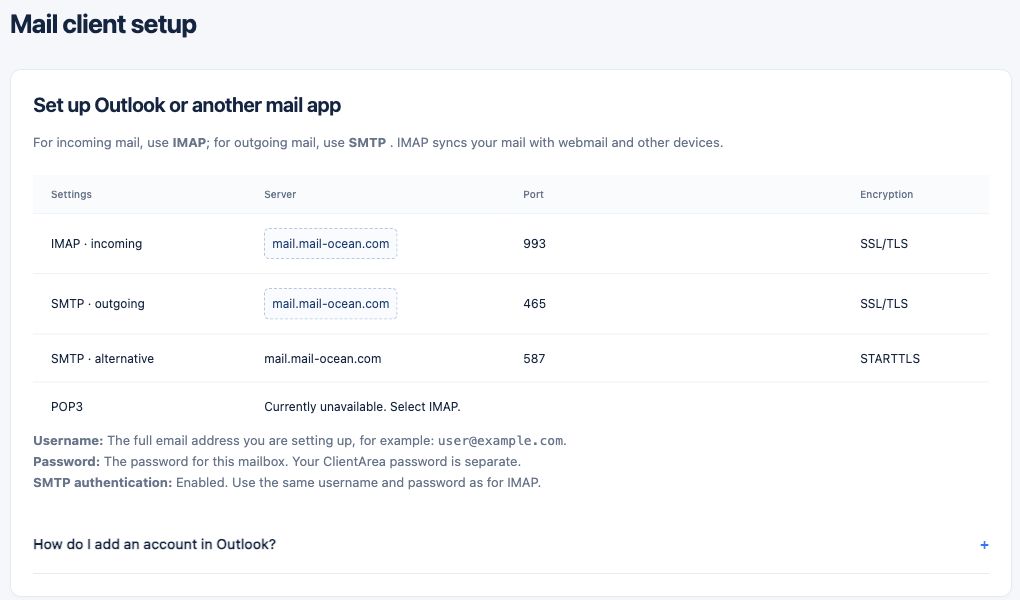
IMAPimap.mail-ocean.com993 · SSL/TLS
SMTPsmtp.mail-ocean.com465 · SSL/TLS / 587 · STARTTLS
Connection settings
Incoming: IMAP, imap.mail-ocean.com, port 993, SSL/TLS. Outgoing: SMTP, smtp.mail-ocean.com, port 465, SSL/TLS. Alternative outgoing: SMTP port 587, STARTTLS.
- In your mail app, add an account and select IMAP or manual setup.
- Set the incoming host to imap.mail-ocean.com, port 993 and SSL/TLS.
- Set the outgoing host to smtp.mail-ocean.com, port 465 and SSL/TLS; if using port 587, select STARTTLS.
Credentials
Use the complete email address (for example user@example.com) as the username and that mailbox’s password. Enable SMTP authentication using the same credentials.
- Enter your full email address as the username for both incoming and outgoing servers.
- Enter the mailbox password and enable authentication for the outgoing SMTP server.
- If the app asks for separate incoming and outgoing passwords, use the same mailbox password for both.
Your customer portal password and mailbox password are separate. POP3 is currently unavailable; use IMAP.
Test the connection
Send a test message to yourself and verify that it is sent and received. If it fails, check the hostname, port, encryption and full email address.
- Send a test message to yourself and check Sent and Inbox.
- If sending fails, check SMTP authentication and the 465/SSL-TLS or 587/STARTTLS pairing.
- If sign-in fails, check the full address and mailbox password; ask your organization’s administrator if needed.